eForms on Tablet
eForms on Tablet allows users to configure the eForms on tablet configurations for properties.
To access this feature, users must perform the following:
-
Enable the license in the eForms BackOffice
-
Enable Role Permissions in eForms Admin
Enable License
Users must enable the eForms on Tablet license to use the eForms on tablet feature.
Contact Agilysys to enable the eForms on Tablet license.
Enable Role Permissions
To create or modify the eForms on Tablet configurations for a tenant and/or property, users with privileges must perform the following steps in eForms Admin to enable the required permissions for a role:
Click Admin.
Under the Administration tab, click Role Setup.
Select a role under the List or Roles section or create a new role by clicking Create New.
Click Permissions across the selected role under the Actions column. The User Role Configuration page appears.
Enable the following checkboxes:
-
Use eForm Renderer
-
Edit eForm Renderer Property Config
-
Edit eForm Renderer Tenant Config
Click Update.
Configure eForms on Tablet for Properties
The eForms on Tablet section contains the following sub-sections where users can configure the logo, background image, and carousel image that must appear on the eForms renderer on the tablet for a single or multiple properties:
-
Host Page
-
Landing Page
-
Host Configuration
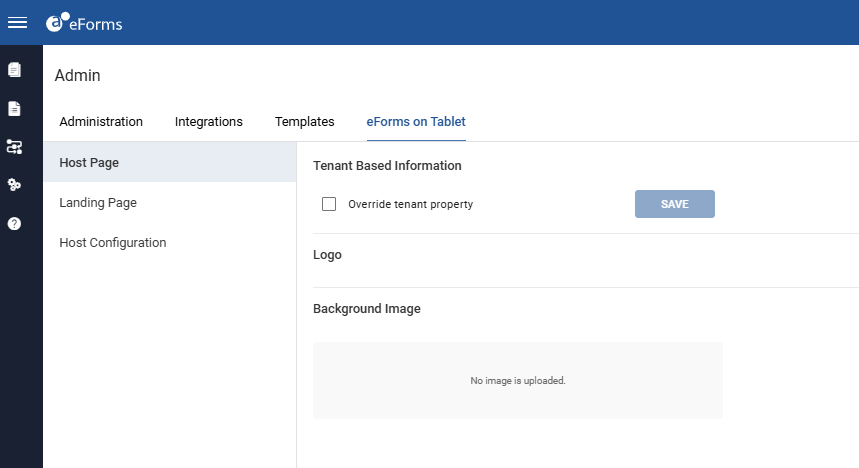
Click Admin.
Click the eForms on Tablet tab. By default, the Host Page section on the left navigation menu appears.
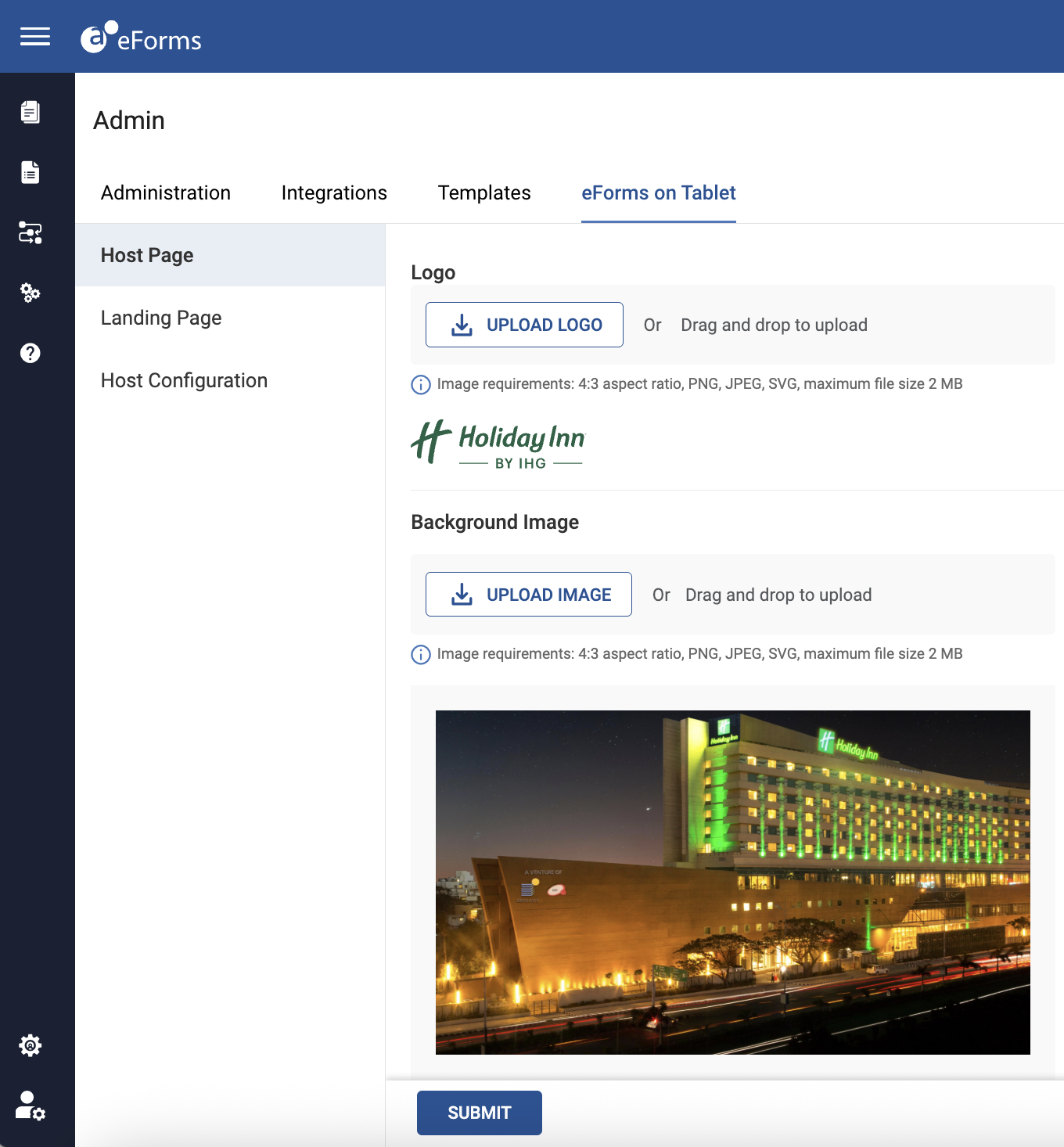
Enable the Override tenant property checkbox under Configuration to override the host page configurations for tenants.
Click Save to save the changes.
Click Upload Logo or drag and drop under Logo to upload the property logo. The supported image formats are PNG, JPG, and SVG. The maximum file size allowed is 2 MB and the aspect ratio must be 4:3.
Click Upload Image or drag and drop under Background Image to upload a background image for the property. The supported image formats are PNG, JPG, and SVG. The maximum file size allowed is 2 MB and the aspect ratio must be 4:3.
Click Submit.
Click the Landing Page section on the left navigation menu.
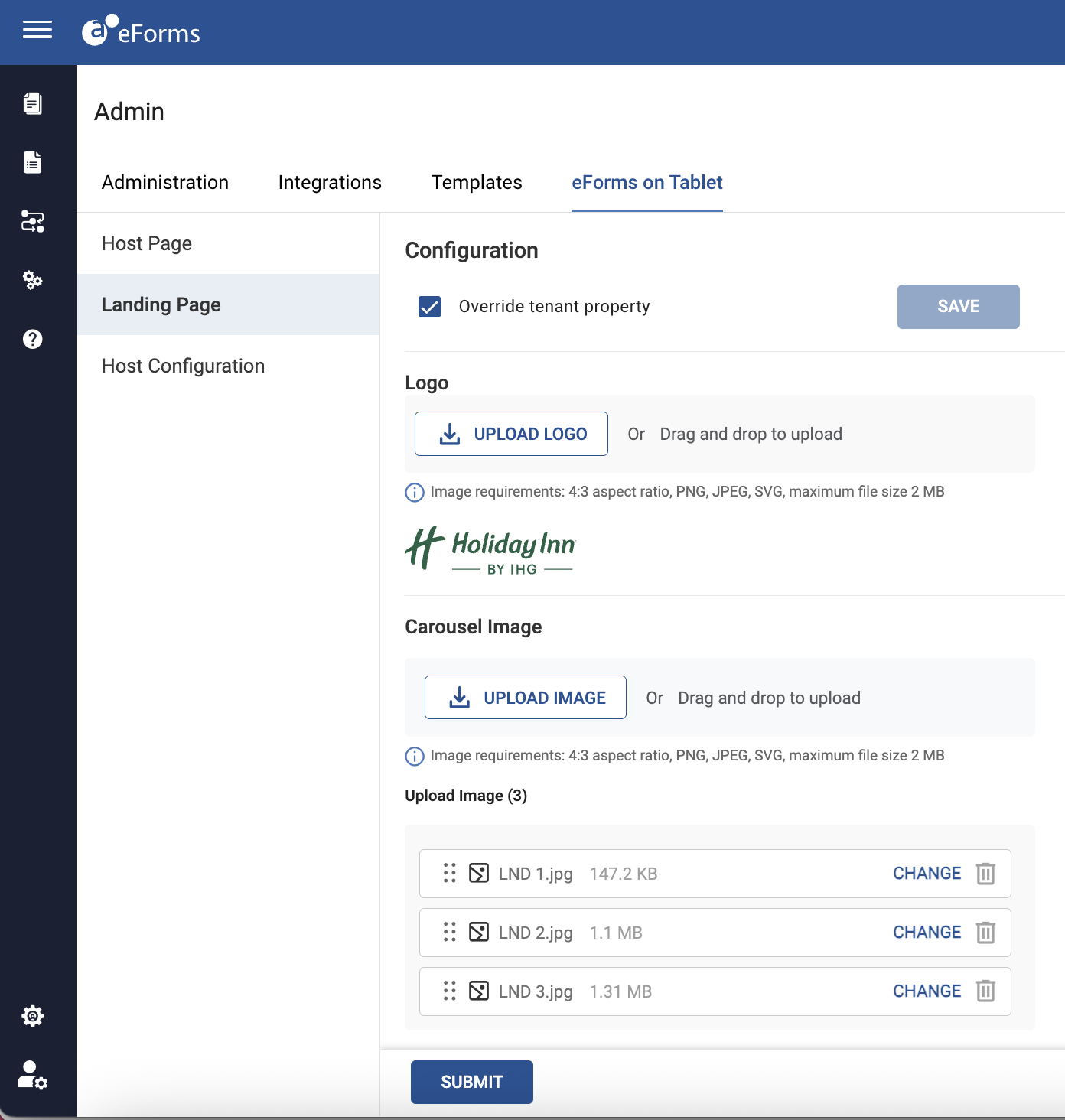
Enable the Override tenant property checkbox under Configuration to override the landing page configurations for tenants.
Click Save to save the changes.
Click Upload Logo or drag and drop under Logo to upload the property logo that must appear on the eForm renderer landing page. The supported image formats are PNG, JPG, and SVG. The maximum file size allowed is 2 MB and the aspect ratio must be 4:3.
Click Upload Image or drag and drop under Carousel Image to upload multiple images on the eForm renderer landing page. The supported image formats are PNG, JPG, and SVG. The maximum file size allowed is 2 MB and the aspect ratio must be 4:3.
Click Submit.
Click the Host Configuration section on the left navigation menu. The List of Configurations section appears.
Click the Add icon to add the hostname in the Host Name field. By default, the Active flag is enabled, and the Delete/Remove button appears. If users wish to deactivate the hostname, they must disable the Active flag. If users wish to delete/remove the hostname, they must click on the Delete button.
Click Submit.